| The Flash
Interface
Before you can begin to create interactive animations in Flash you need
to become familiar with the working environment.
Step 1:
Open Flash MX
The document window you will see contains six major elements: the
Timeline; the Stage;
the Work Area; the Information
Bar; the Toolbox; and the Panels |
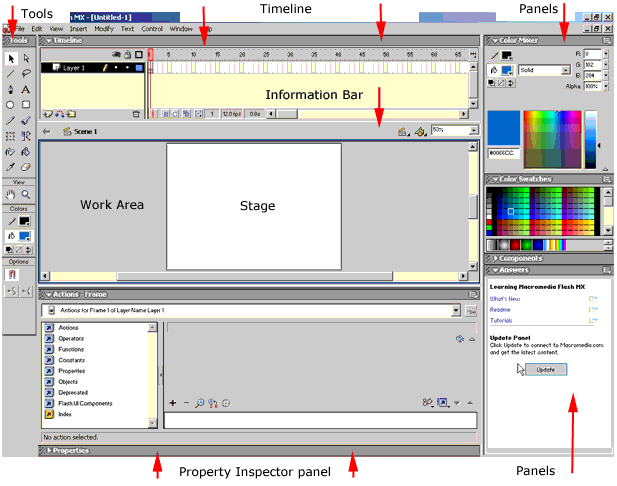 |
The Timeline

- The Timeline
controls and shows all of the elements of your project over time. It
uses Frames and Layers to organize your work.
- The Playhead
tells you which frame is currently displayed on the
Stage
Layer controls allows you to control your layers.
You will learn about layers in more detail later in this tutorial
- Status Bar
gives you information about the current frame, the number of frames
per second (fps) and the elapsed time of your movie
- The Frame View is a drop down menu that
lets you control the appearance of the Timeline.
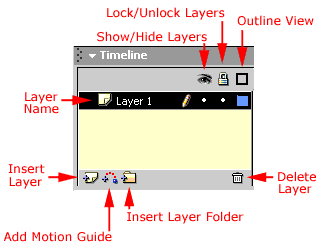
Layers
allow you to organize your work.
- Layer name - the default is Layer
1, Layer 2 etc
- Insert layer - click to add a new
layer
- Add motion guide - by clicking
this you add a guide layer on top of your current one
- Insert Layer Folder - this adds
a folder that can store other layers, this is useful in complicated
projects to help organize your work
- Delete Layer - to remove a layer,
drag it to the trash
Show/Hide all layers - can hide a
layer while you are working
- Lock/unlock all Layers - by clicking
this it's impossible to edit a layer
- Outline view - displays solid shapes
as outlines with no fill
|
Layer Controls
 |
The Information Bar

The purpose of the Information Bar
is to give you quick visual feedback about where you are in your movie.
- Current Scene - displays the name of
the scene currently open on the Stage
- Edit Scene Menu - is a drop down menu
that shows all the scenes in your project file
- Edit Symbol Menu - again is a drop down
menu. This shows all the symbols in your project
- Zoom - a drop down menu that allows you
to zoom in or out of the contents of your stage
Panels
are windows that contain the tools and information you will need
to work on your project files. Each of the panels is used to view
and change things in your work.
This tutorial will introduce you to some of the basic features
of the panels, but detailed information will be presented throughout
the semester as you progress through all the tutorials in learning
Flash MX basics.
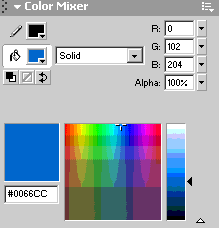
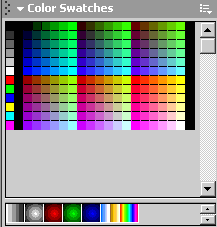
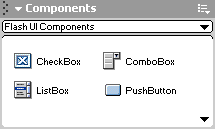
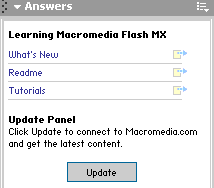
Panels can be arranged in defined Panel Sets.
The default set includes: Color Mixer;
Color Swatches; Components;
and Answers
|
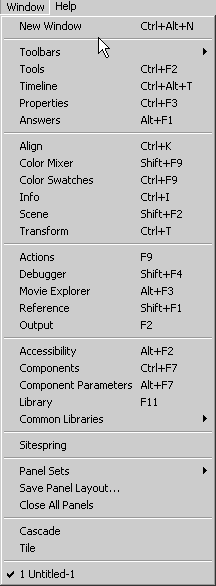
The Window Menu
|
Scene
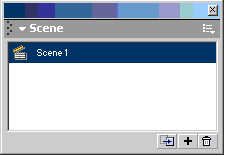
Scene displays a list of all the scenes
in your movie. You can add, delete, duplicate, name, or rename scenes
in this panel |
Transform
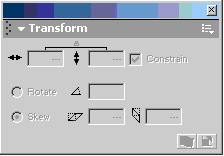
The Transform panel allows you to rotate,
scale and skew an object numerically |
Align
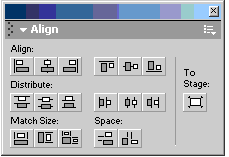
The Align panel allows you to align objects |
Info
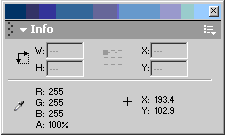
The Info panel gives you numerical information
about the size, position and color of the selected object. |
Accessibility
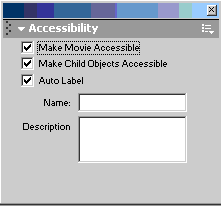
Accessibility
gives you some options to make your movie accessible to the disabled.
This is extremely important for professionals having to meet EU guidelines |
Library
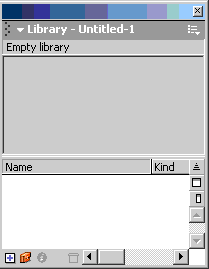
The Library is a location for you to
store symbols, imported artwork, sound files and video files. |
Common Library Buttons
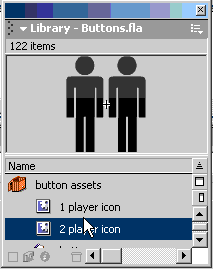 |
Common Library Learning
Interactions
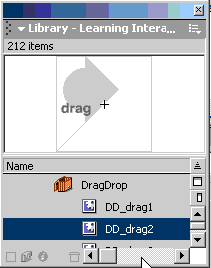 |
Common Library Sounds
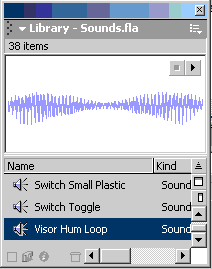 |
| Common Libaries exist for
some basic buttons, interactions, and sounds. |
Movie Explorer
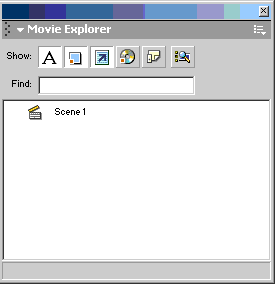
Movie Explorer shows the contents of
your movie in a hierarchical tree |
Output
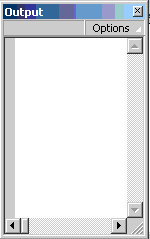
Output gives you assistance during troubleshooting
by giving you feedback |
Debugger
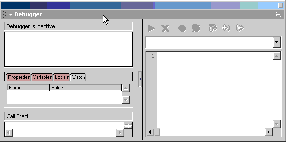
The Debugger gives you a way to check
your movie for errors while it's playing in the Flash Player |
Actions
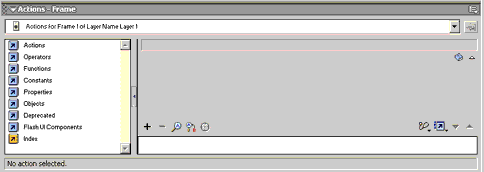 |
The Actions Panel allows
you to add and change actions for a frame, button or movie clip |
Reference
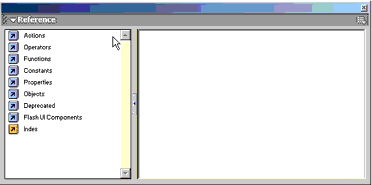 |
The Reference Panel shows you detailed
information about ActionScripting use and syntax |
Property Inspector

The Property Inspector displays and allows
changing of all the commonly used attributes of the currently selection
in one panel. This saves you time, in that you don't have to open multiple
panels to make a change
All panels can be Expanded, Collapsed, Hidden, Closed or Resized
Home
Page | Dreamweaver/Fireworks Introduction
| Flash Interface | Flash
Tools | Flash Animation | Tweening
| Symbols/Instances | Buttons
| Flash Sounds
|