
Buttons - Rollover
| Using a button to create an 'action' is a simple way of adding an interaction to your Flash Movie. In this series of exercises you'll learn how to create buttons, add sound to them, and finally add a simple interaction. |
Buttons have three states:
|
|||||||||
| Step 1 - Create a new movie - import the River picture into your library and place it on the Stage. Name this layer background and lock it. | |||||||||
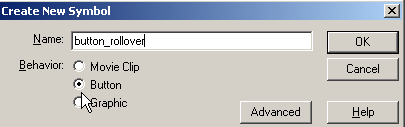
Step 2 - Insert > New Symbol opens the Symbols properties dialoge box. Name the symbol button_rollover and set the Behavior to Button Click OK |
 |
||||||||
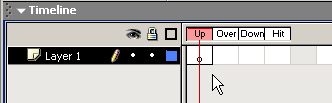
Step 3 - Once you click OK you move into the button's Timeline. Notice that you have three states for the button: Up; Over; Down; Hit The button's Timeline is independent of the main Timeline. |
 |
||||||||
| Step 4 - Turn the Grid on (View > Grid >Show Grid) and with the line tool draw a small triangle (make sure that you have black selected as the stroke color) |  |
||||||||
Step 5 - Select the Paintbucket took and set the color to #3E422B Click once inside the triange to fill it with this color. |
|||||||||
Step 6 - With the arrow tool double click on one of the black lines around the triangle to select all the strokes - with the keyboard delete key delete them. You now have a triangle with just color. |
|||||||||
| Step 7 - Add a Keyframe to the Over frame of the button. | |||||||||
Step 8 - Select the Paintbucket tool again and pick the color White. Now change the color of your triangle to white by clicking once inside it. |
|||||||||
| Step 9 - Add a Keyframe in the Down state and change the color of the triangle to #3E422B | |||||||||
Step 10 - Add a Keyframe to the Hit frame of the button You've now created a button |
|||||||||
Step 11 - Return to the Scene Notice how you can't see your button? That's because it's a Symbol in your Library. |
 |
||||||||
Step - 12 Drag the button from the Library onto the Stage Control > Enable Simple Buttons will allow you to test the button on the Stage. Test your button Then turn off Control > Enable Simple Buttons |
|||||||||
| Save this file and move to the next part of the Tutorial. | |||||||||
Home
Page | Dreamweaver/Fireworks Introduction
| Flash Interface | Flash
Tools | Animation | Tweening
| Symbols/Instances | Buttons
| Sounds
Rollover
Buttons | Buttons with Text | Library
Buttons | Buttons/Sound
| Interactions