
Buttons - Sound
We've got buttons, now for some sound with those buttons! |
| Step
1 - Make sure that
you've turned off
|
|
Step 2 - With the Arrow tool, double click on one of your buttons. Now add a new layer and
name it Button 1 - Sound. Insert a Key Frame on the Over
State. |
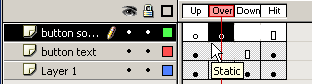 |
Step 3 - Open your Common Library of Sounds and pick a sound that you like (do NOT obsess over this)
|
|
Step 4 - With the Over State selected drag your sound onto the Stage Notice it will now appear as a sound wave on your Timeline. |
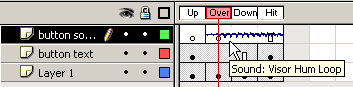 |
Step
5 - Click back
on Scene 1 and Continue to experiment with this by adding a sound to your Common Library Button. You can also experiment with which state you add your sound. |
Home
Page | Dreamweaver/Fireworks Introduction
| Flash Interface | Flash
Tools | Animation | Tweening
| Symbols/Instances | Buttons
| Sounds
Rollover
Buttons | Buttons with Text | Library
Buttons | Buttons/Sound | Interactions