
Buttons - Rollover with Text
| Step 1 - Keeping your work from the previous exercise we are now going to add some text to our button. Turn off Enable Simple Buttons so that you can make some changes.
|
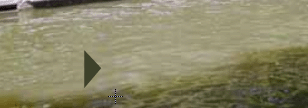 |
Step 2 - Picking up the arrow tool, double click on your button so you can modify it. Add a new layer named button text |
|
Step 3 - Choose the Up frame (first one) on the new layer and select the Text Tool.
|
|
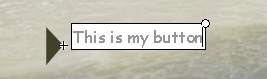
Step 4 - Click on the Stage beside your button and add some text.
|
 |
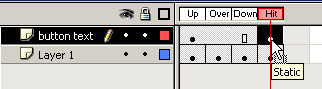
Step 5 - We need to add a Hit area to make the text and the area around the text 'clickable'. In the Timeline insert a Key Frame on the 'Hit' Frame |
 |
| Step 6 - Pick up the Rectangle Tool and draw a box around your button and text area | 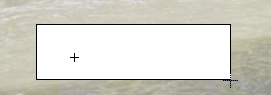 |
| Step 7 - Click back on Scene 1 and
turn on Control >Enable Simple Buttons Check your Text Button! |
 |
Home
Page | Dreamweaver/Fireworks Introduction
| Flash Interface | Flash
Tools | Animation | Tweening
| Symbols/Instances | Buttons
| Sounds
Rollover Buttons
| Buttons with Text | Library
Buttons | Buttons/Sound |
Interactions