
Buttons - Interactions
| You've created buttons, you've added sound to buttons, now it's time to add an interaction to a button. |
Step
1 - Add a new layer
named Frame 2. Insert
a Don't get confused over the fact that you have a Layer named Frame 2 and you will be putting information actually on frame 2 of your Timeline!!!!! |
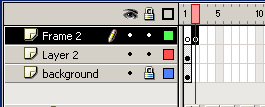 |
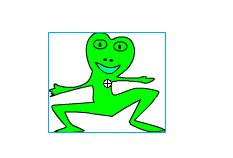
Step 2 - Draw a frog on the second frame on the Frame 2 layer I don't care if it's a frog or not... DON'T obsess over this |
 |
| Step 3 - Extend your background by clicking on the background layer and adding a frame on frame 2 of the Timeline in the background layer | 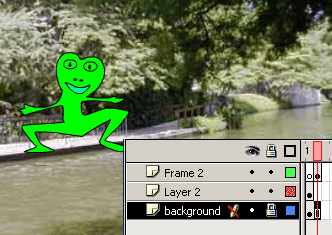 |
| Step 4 - Add a new Layer and name it Actions. Insert a frame in frame 2 on the Actions Layer. | 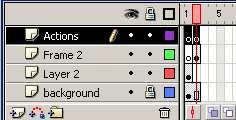 |
Step 5 - Select Frame 1 on the Actions Layer Open the Actions Panel Click on Actions Click on Movie Control Double click on Stop |
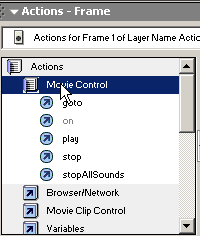 |
| Step 6 - Go to frame 2 of the Actions Layer and repeat this process | |
Step 7 - Close the Actions Panel (so that you can see the Stage) and select your button (making sure that Enable Simple Buttons is off) Open the Actions Panel again |
|
Step 8 - Double click on goto In the right hand panel you want to change the frame to Frame 2 You are telling Flash that you want to go to Frame 2 when the user clicks the button! |
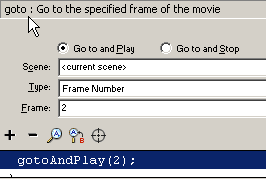 |
| Step 9 - Test your movie | |
Continue to play and experiment. You've now added an action that happens when the user clicks on a button. |
Home
Page | Dreamweaver/Fireworks Introduction
| Flash Interface | Flash
Tools | Animation | Tweening
| Symbols/Instances | Buttons
| Sounds
Rollover Buttons | Buttons
with Text | Library Buttons | Buttons/Sound
| Interactions