
Flash Animation - Adding and Deleting Frames
The previous exercise showed you how you can adjust the frame rate of your animation to adjust the time. But you also noticed how this affects your movie.
Step 1 - Click on the Layer with your Frog and Insert a Frame. Notice how this is different from a Keyframe. (Image 1) Add five more frames. These frames indicate no change in content. The small square shows that the next frame will either be a Keyframe or a blank keyframe. Since the next frame here has a solid black dot it is a keyframe. A white dot means a blank keyframe. (Image 2) |
Image 1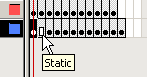
|
Image 2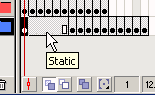
|
| Step 2 - Now play your movie. See the difference? | ||
| Step 3 - Try deleting some of the frames on either one of your layers? Is there a difference? | ||
| Step 4 - Experiment with adding and deleting frames until you like some of the changes. | ||
Home
Page | Dreamweaver/Fireworks Introduction
| Flash Interface | Flash
Tools | Animation | Tweening
| Symbols/Instances | Buttons
| Sounds
Timeline | Properties
| Keyframes | Onion
Skinning | Frame Rate | Adding
and Deleting Frames | Copying Frames
| Testing