
Flash Animation - Testing
You've been watching your movies by using the Control > Play command. Now it's time to Test your movie, Preview it in a browser; and how to create the HTML file to hold your swf file.
| Step 1- Under
Control > Test movie to see how your movie looks. |
 Step
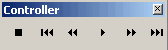
2 - Under Window > Toolbars
> Controller Step
2 - Under Window > Toolbars
> Controller This brings up a controller that makes it easier for you to control your movie. |
| Step 3 - Look in the folder where you had your frog.fla movie. Notice that you now have a frog.swf movie? This was created when you Tested your movie. |
| Step 4 - Under File > Publish Preview > Default-(HTML). This launches your browser so you can see your movie in the browser, |
| Step 5 - Look in the folder where you had your frog.fla movie and your frog.swf movie. You will now find a frog.html file. Flash MX automatically created this file when you Published your movie. |
| Congratulations! You've now created your first Flash animated movie |
Home
Page | Dreamweaver/Fireworks Introduction
| Flash Interface | Flash
Tools | Animation | Tweening
| Symbols/Instances | Buttons
| Sounds
Timeline | Properties
| Keyframes | Onion
Skinning | Frame Rate | Adding
and Deleting Frames | Copying Frames
| Testing