
Flash Animation - Onion Skinning
Onion Skinning allows you to see a faint ghost image of the previous frame so you can see where you want to place the artwork for the next frame. First of all you need to add a new layer on your Stage - you will draw and animate your Frog on this Layer, while your Text in on the previous layer.
Step 1 - Draw a Frog on the Stage Don't obsess over this... just draw the frog! |
 |
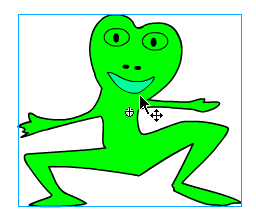
Step 2 - Select Frame 2 and add a Keyframe In Frame 2 click on the Frog to select it, and move it up and to the right.
|
 |
| Notice how you now can see a faint ghost image where your first frame was? | 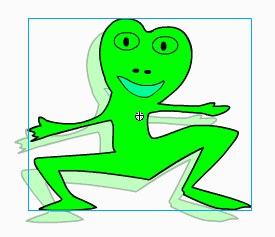 |
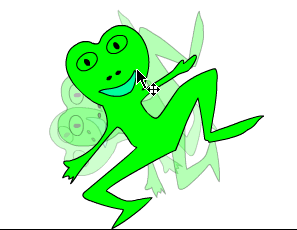
Step 3 - With the Transform Tool selected rotate, scale etc your Frog. Continue to add Keyframes for each change you make in the Frog. Do this for 11 frames. Choose Control > Loop Playback so that you can see your animation repeat. |
 |
| Step 4 - Play with and Modify your movie. Add as many Keyframes as you wish and make the movie as long as you wish. |
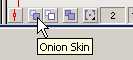 At
the bottom of the Timeline there is a row of five buttons. Click
on the second one- this turns on Onion Skinning
At
the bottom of the Timeline there is a row of five buttons. Click
on the second one- this turns on Onion SkinningHome
Page | Dreamweaver/Fireworks Introduction
| Flash Interface | Flash
Tools | Animation | Tweening
| Symbols/Instances | Buttons
| Sounds
Timeline | Properties
| Keyframes | Onion
Skinning | Frame Rate | Adding
and Deleting Frames | Copying Frames
| Testing