
Tweening- Basic Motion Tweening
To create a Motion tween you will first have to make sure that you are using a Graphic Symbol. Place the River picture on the Stage and set this as the Background Layer. |
Step 1 - Create a new layer named Frog and drag the Frog Symbol onto the Stage. Position the Frog so that it's at the bottom left of the San Antonio River. Notice how you've now set a Keyframe in Frame 1? |
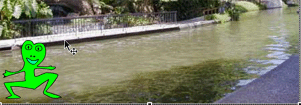 |
| Step 2 - Select the Transform tool and click on the Frog and make the Frog smaller. At the same time drag it to the end of the river. Add a Keyframe at Frame 40. Add a Keyframe at Frame 40 for your background as well. | 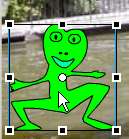 |
Step 3 - On the Timeline click between frames 1 and 40 and add a MOTION tween. Play your movie! |
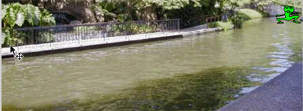 |
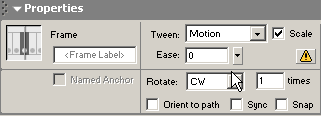
Step 4 - Look back in Properties and see the option to Rotate during the Motion tween. Experiment and have fun! |
 |