
Tweening- Motion Guide
| Using a motion guide allows a symbol to follow a path rather than a straight line. |
| Step 1 - Create a file with the River picture on the background. Lock the background layer | |
| Step 2 - Insert a new layer and name it frog | |
| Step 3 - From the Library, drag a frog instance on the frog layer | |
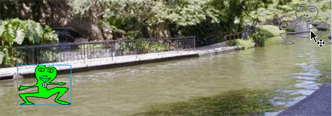
Step 4 - In the Timeline add a keyframe on frame 40 for the background. Click on your frog layer and add a keyframe at frame 40. Click on your frog and drag it to the end of the River. Click on frame 20 in the Timeline and add a basic motion tween between the two keyframes. |
 |
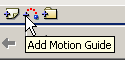
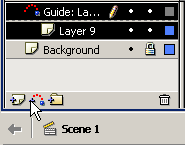
Step 5 - Select the Frog layer and click the Add Motion Guide button This adds a motion guide layer to your frog layer. Lock your frog layer |
   |
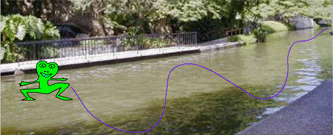
Step 6 - In the Toolbox select the Pencil tool and choose the Smooth option for it. On the Stage draw a curved line in the River to serve as the motion guide the frog will follow as he swims up the River. |
 |
| Step 7 - Unlock the Frog layer, and lock the Motion Guide layer. | |
Step 8 - Move the playhead to Frame 1 On the Frog layer click the Registration Point on the frog and drag the frog to the starting point of the line you drew in the motion guide. When you reach that point the the frog will 'snap' in place. Move the playhead to frame 40 and repeat until you've attached the frog to the end point of your line. Play the movie - notice how the frog follows the line of the motion guide? |
A 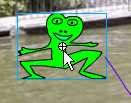 B
B 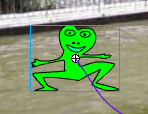 |
| Step 9 - Test Movie and you will not see the motion guide line. | |
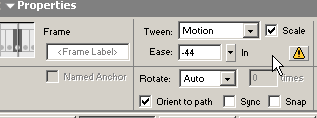
Step 10 - In the Properties Inspector you can add an ease and click the Orient to path. The orient to path will have the frog face the direction of the motion guide. Continue to experiment. |
 |
Home
Page | Dreamweaver/Fireworks Introduction
| Flash Interface | Flash
Tools | Animation | Tweening
| Symbols/Instances | Buttons
| Sounds
Shape Text | Shape
Hinting | Shape Multiples | Shape
Gradients | Motion Basic | Motion
Effects | Motion Multiples | Motion
Guide | Motion Text