
Tweening- Shape Gradients
| In this tutorial you will be learning how to use the Shape Tween to animate a gradient. |
Step 1 - Select the Text tool and on the Stage type in the words: My frog movie Notice that you've now entered a Keyframe in frame 1 on the Timeline. |
 |
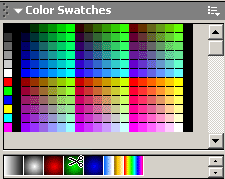
Step 2 - Since this is text you will have to break this apart to add a Shape tween. Modify > Break apart Add another Keyframe in frame 30. Move the Playback to Frame 1 Select the Gradient fill from the bottom of the Color Swatches panel. |
 |
Step 3 - With the Paintbucket select the top of the M in the word My Move the Playback to Frame 30 and repeat |
 |
Step 4 - Inbetween your two Keyframes on the Timeline add a Shape tween. Play your movie |
 |
| Continue to experiment with different ways you can use Gradients to create Shape tween effects with your text. |
Home
Page | Dreamweaver/Fireworks Introduction
| Flash Interface | Flash
Tools | Animation | Tweening
| Symbols/Instances | Buttons
| Sounds
Shape Text | Shape
Hinting | Shape Multiples | Shape
Gradients | Motion Basic | Motion
Effects | Motion Multiples | Motion
Guide | Motion Text