
Tweening- Shape Multiple Layers
| In this tutorial you will be working with multiple shapes on muliple layers. |
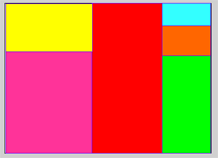
| Step 1 - On the Timeline add six layers. Name them six different colors. Go to frame 15 on the Timeline and insert a Keyframe in each of the layers by creating a colored rectange to match the color you named the layer. | 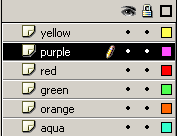   |
 |
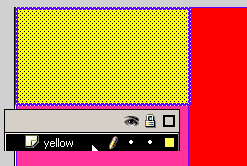
Step 2 - Select one of your layers - notice how the color on the Stage is now highlighted? Under Edit > Copy Frames
|
 |
|
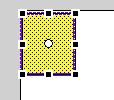
Step 3 - Go to Frame one on the
Timeline and under Edit > Paste
Frame Pick up the Transform Tool and Scale the rectangle from full size to almost nothing. Repeat these steps for all six colors. |
 |
|
Step 4 - Click on a frame between 1-15 for each layer and add the Shape Tween. Play your movie |
||
| Step 5 - Continue to experiment with different ways to Shape Tween the different rectangles. | ||
Home
Page | Dreamweaver/Fireworks Introduction
| Flash Interface | Flash
Tools | Animation | Tweening
| Symbols/Instances | Buttons
| Sounds
Shape Text | Shape
Hinting | Shape Multiples | Shape
Gradients | Motion Basic | Motion
Effects | Motion Multiples | Motion
Guide | Motion Text