
The Brush Tool
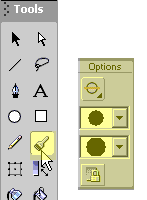
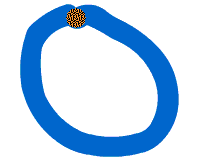
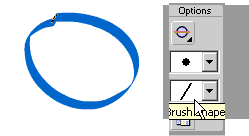
You use the Brush Tool to paint shapes. In this tutorial you will work with the Brush to create and modify shapes. Step 1 - Click on the Brush Tool. Notice that there are several options? Step 2 - Draw a circle on the Stage with the Brush Tool. Notice that the Fill color is used to draw the circle instead of the Stroke color? The Brush tool uses the Fill color as Flash considers the shape it draws to be a fill, not a stroke.
|
 |
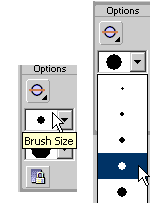
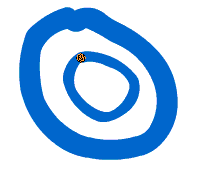
Step 3 - Look in the Brush options and choose another Brush size from the menu. Step 4 - Draw another circle inside the first one. Notice how it is a different size?
Step 5 - Change your Brush Shape in the options menu and draw another circle on the stage.
Step 6 - Continue to experiment with the different Brushes and options. |
 |
Homepage
| Dreamweaver/Fireworks Intro | Flash
Interface | Flash Tools | Animation
| Tweening | Symbols/Instances
| Buttons | Sounds
Tools | Pencil
| Lines | Oval/Rectange
| Brush | Strokes/Fills
| Multiple Objects | Grouping
| Gradients | Pen |
Paths