
Text, Strokes and Fills
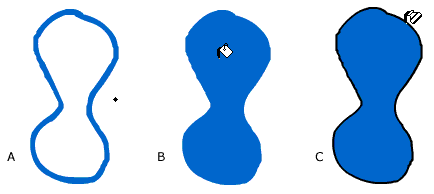
You've learned how to create objects with the Line, Oval, Rectangle, and Brush tools. With the Line tool you created an object that you modified using the Stroke Options in the Property Inspector. With the Brush tool you created an object that just had a fill, no stroke. Now you're going to practice adding a Stoke to a Fill Step 1 - Using the Brush, draw a shape (A). Step 2 - Using the Paint Bucket fill the shape (B). Step 3 - Using the Ink Bottle, click on the edge of your shape and you've now added a Stroke (C). |
 |
|
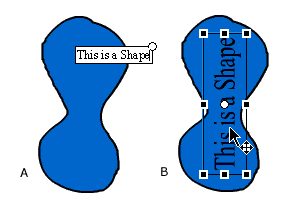
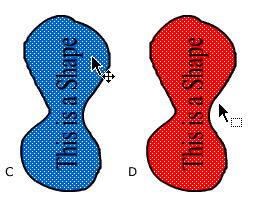
Step 5 - Use the Transform Tool and modify your text (B). Step 6 - Click on the Arrow and select the Fill color (C). Step 7 - Using the Paint Bucket, change it (D). |
|
 |
 |
Homepage
| Dreamweaver/Fireworks Intro | Flash
Interface | Flash Tools | Animation
| Tweening | Symbols/Instances
| Buttons | Sounds
Tools | Pencil
| Lines | Oval/Rectange
| Brush | Strokes/Fills
| Multiple Objects | Grouping
| Gradients | Pen |
Paths