
Modifying Paths
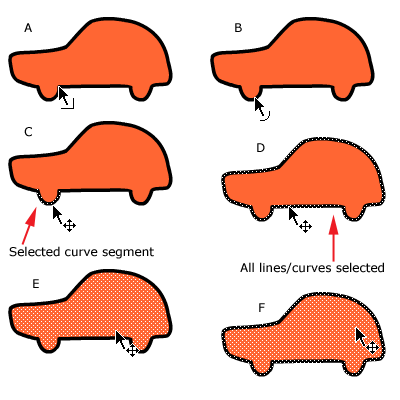
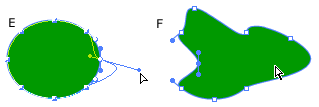
Let's review how to select lines and curves. Step 1 - Select the arrow tool Step 2 - Position the arrow over a curve and you will see a small arc next to the arrow. This means you've selected a curve. (B) Step 3 - Click once to select either the line or curve segment (C) Step 4 - Click twice to select all lines and curves (D) Step 5 - Position the cursor over the fill and click once to select it. (E) Step 6 - Position the cursor over the fill and click twice to select the entire object (F) |
 |
 and position the cursor over a line. Notice how there is now a small
corner next to the cursor? That means you've selected a line. (A)
and position the cursor over a line. Notice how there is now a small
corner next to the cursor? That means you've selected a line. (A)| Step 7 - Select a line (A) - drag the mouse to the right (B) and notice how the shape distorts? (C) | 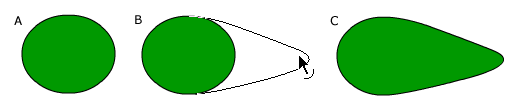 |
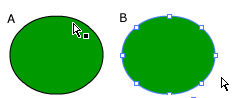
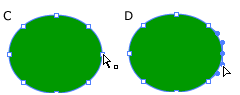
Step 8 - Move the cursor over the edge of a circle - you will see a small black square next to the cursor. This tells you that you are over a line (A) Step 9 - Click on the edge of the circle. You will now see the anchor points (B) Step 10 - Using the subselection tool Step 11 - Click to select the anchor point. When you do you will see the tangent handles for that anchor point. (D) Step 12 - Click and drag the top tangent handle. Notice the the top and bottom portions of the curve change together. (E) Step 13 - Play with the tangent handles to change the shape. (G) Step 14 - You can add anchor points to a line with the pen tool. Continue to practice with the Flash drawing tools until you feel comfortable using them. |
|
 move the cursor over an anchor point (C)
Homepage
| Dreamweaver/Fireworks Intro | Flash
Interface | Flash Tools | Animation
| Tweening | Symbols/Instances
| Buttons | Sounds
Tools | Pencil
| Lines | Oval/Rectange
| Brush | Strokes/Fills
| Multiple Objects | Grouping
| Gradients | Pen |
Paths